---
title: Install your SiteHive Hexanode Noise, Dust or Noise+Dust
description: "This guide covers deploying the SiteHive Hexanode Noise, Dust and Noise+Dust devices in two configurations: the solar stand setup (lithium or lead-acid…"
image: https://support.sitehive.com/hs-fs/hubfs/Knowledge%20Base%20Import/homepageimages/enviro-setup.jpg?width=1200&name=enviro-setup.jpg
---
[Skip to content](https://support.sitehive.com/en-au/install-your-sitehive-hexanode-noise-dust-or-noise-dust#main-content)
[](https://support.sitehive.com/?hsLang=en-au)
Open main navigation
Close main navigation
- [Contact us](https://support.sitehive.com/en-au/contact-us)
[Contact us](https://support.sitehive.com/en-au/contact-us?hsLang=en-au)
How can we help?
- There are no suggestions because the search field is empty.
1. [SiteHive Support](https://support.sitehive.com/en-au?hsLang=en-au)
2. [Getting started: first day on site](https://support.sitehive.com/en-au/getting-started-first-day-on-site?hsLang=en-au)
# Install your SiteHive Hexanode Noise, Dust or Noise+Dust
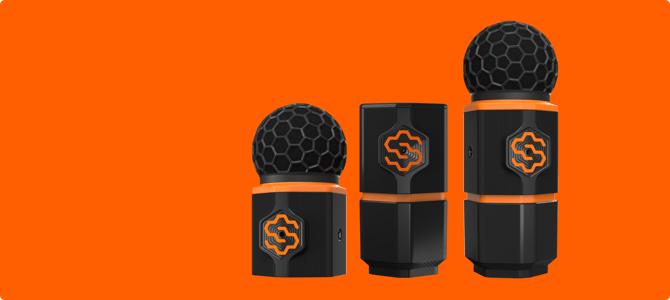
This guide covers deploying the SiteHive Hexanode Noise, Dust and Noise+Dust devices in two configurations: the **solar stand setup** (lithium or lead-acid battery), and the **solar panel with pole mount**.
---
### Solar stand setup: Hexanode Noise, Dust, & Noise+Dust 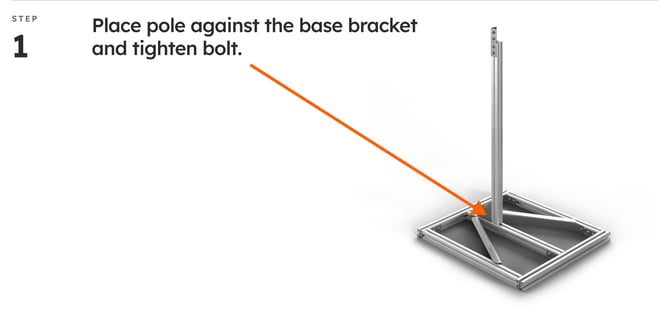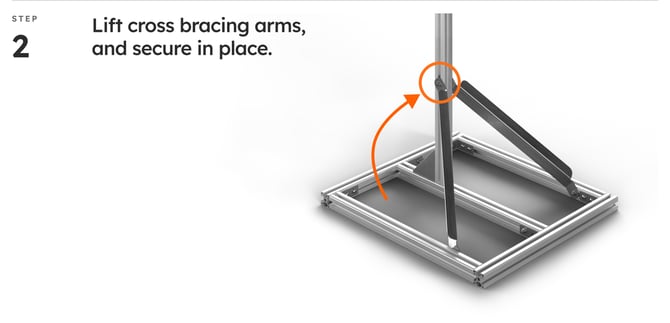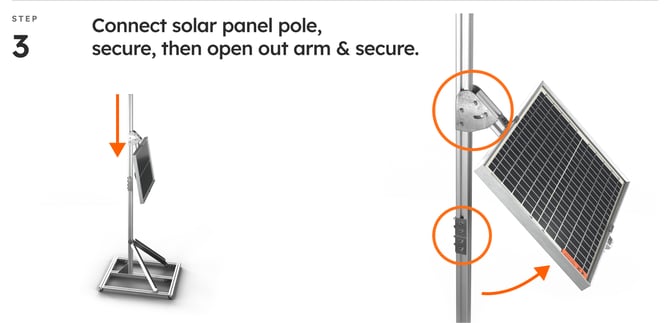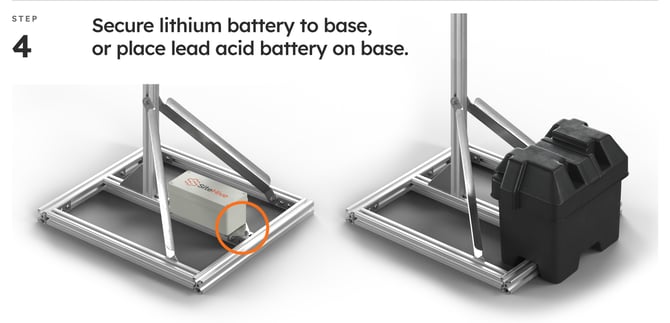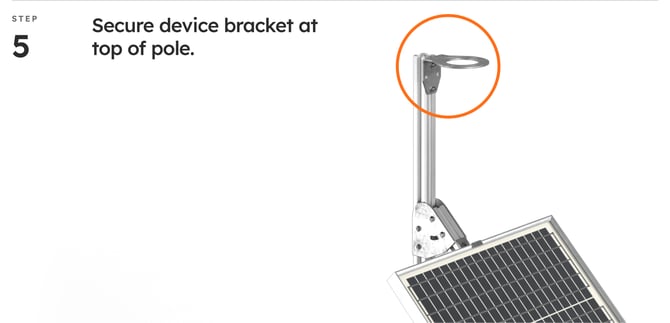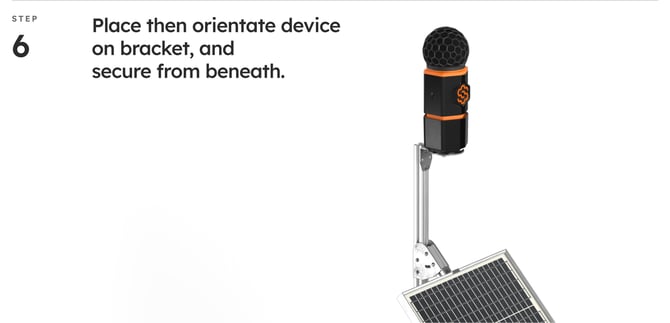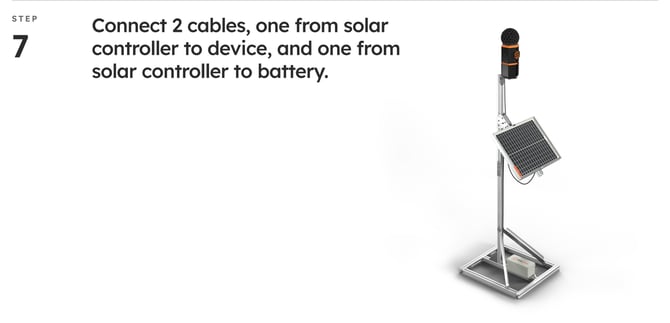Watch the video for the solar stand setup. Steps 5 and 6 in the video show the differences between lithium and lead-acid batteries.
#### Steps
1. **Lift the solar panel:** lift the panel and tighten the screws via the 45° bracket.
2. **Connect the bottom upright:** attach the bottom upright pole to the base via the corner bracket, and attach the 45° bracket to the solar panel.
3. **Connect the top upright:** connect the top upright pole via the straight brackets.
4. **Connect the Hexanode:** unscrew the thread from the bottom of the Hexanode device, then insert the screw through the bottom of the L bracket and into the Hexanode.
5. **Connect and mount the battery:** connect the battery cable to the lithium (or lead-acid) battery, connect the load cable to the Hexanode device, then place the battery under the solar panel or mount it to the base.
6. **Check the Hexanode device is on:** look for the flashing light in the centre of the SiteHive logo. Green means it is powered, connected and recording: you are done here, note which way the logo faces, take a photo and move to the next device. Any other colour, or none at all: [LED device lights: what each colour means](https://support.sitehive.com/en-au/led-device-lights-what-each-colour-means?hsLang=en-au).
---
### Solar panel with pole mount: Hexanode Noise, Dust, & Noise+Dust
Watch the video for the solar panel with pole mount setup.
#### Steps
1. **Remove the solar panel from the base frame:** loosen the screws.
2. **Remove the side pole from the frame** and re-attach it to the panel.
3. **Remove the angle bracket** and attach it to the mounting pole.
4. **Mount the solar panel.**
5. **Mount the frame on the fence or pole:** zip ties can be used.
6. **Mount and connect the battery.**
7. **Mount the Hexanode device.**
8. **Orientate the Hexanode device for camera coverage:** each camera has a 160° view. See [Orientate your device](https://support.sitehive.com/en-au/check-and-adjust-your-devices-orientation?hsLang=en-au) for setting the orientation, including working it out from the camera images.
9. **Connect power to the Hexanode device.**
10. **Check the Hexanode device is on:** look for the flashing light in the centre of the SiteHive logo. Green means it is powered, connected and recording: you are done here, note which way the logo faces, take a photo and move to the next device. Any other colour, or none at all: [LED device lights: what each colour means](https://support.sitehive.com/en-au/led-device-lights-what-each-colour-means?hsLang=en-au).
---
### What’s next: is the device light green?
**Green?** Go to [See your first data](https://support.sitehive.com/en-au/see-your-first-data?hsLang=en-au) to set up each device in SiteHive Enviro.
**Not green?** Check [LED device lights: what each colour means](https://support.sitehive.com/en-au/led-device-lights-what-each-colour-means?hsLang=en-au).
[](https://sitehive.com/)
[www.sitehive.com](https://www.sitehive.com)
[mailto:support@sitehive.co](mailto:support@sitehive.co)
Copyright © 2026, SiteHive