---
title: Move or end the device
description: A device's time at a Monitoring Point is a record with a start and an end.
image: https://support.sitehive.com/hs-fs/hubfs/Knowledge%20Base%20Import/homepageimages/enviro-setup.jpg?width=1200&name=enviro-setup.jpg
---
[Skip to content](https://support.sitehive.com/en-au/move-or-end-the-device#main-content)
[](https://support.sitehive.com/?hsLang=en-au)
Open main navigation
Close main navigation
- [Contact us](https://support.sitehive.com/en-au/contact-us)
[Contact us](https://support.sitehive.com/en-au/contact-us?hsLang=en-au)
How can we help?
- There are no suggestions because the search field is empty.
1. [SiteHive Support](https://support.sitehive.com/en-au?hsLang=en-au)
2. [Looking after SiteHive Hexanode devices](https://support.sitehive.com/en-au/looking-after-sitehive-hexanode-devices?hsLang=en-au)
# Move or end the device
A device's time at a Monitoring Point is a record with a start and an end. This page is for changing that record once monitoring is running in **SiteHive Enviro**: moving the device to another Monitoring Point, ending its monitoring where it is, and fixing the dates afterwards. All of it is done from the **Device Actions** menu.
What are you solving?
- **Same device, in a new location:** move it. See **Move a device to another Monitoring Point** below.
- **Swapping a device:** See [Swap a device](https://support.sitehive.com/en-au/swap-a-device?hsLang=en-au).
- **Finished here:** end monitoring. See **End monitoring at a Monitoring Point** below.
### Where the actions are
On the Dashboard, select the Monitoring Point and click **Manage**. On the **Devices** tab, find the device's line and open **Device Actions**. The rest of the window is mapped in [Click Manage to adjust settings and devices](https://support.sitehive.com/en-au/click-manage-to-adjust-settings-and-devices?hsLang=en-au).
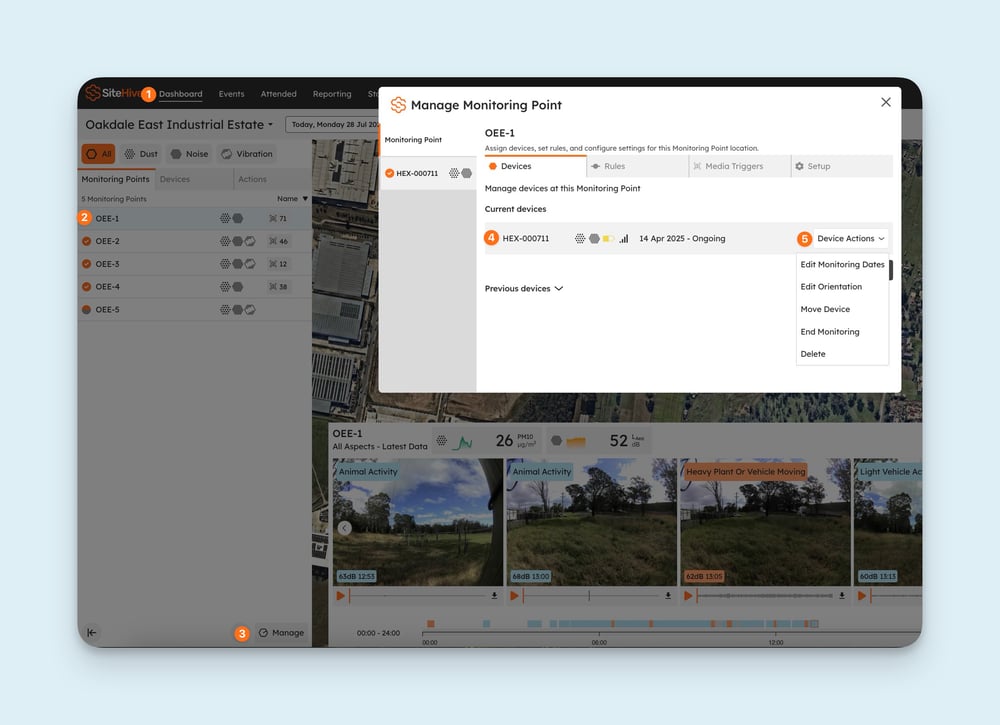
### Move a device to another Monitoring Point
Use this when the works have moved and the device goes with them. The device keeps its history at the old Monitoring Point and starts a new record at the new one.
1. Select the device, open **Device Actions** and choose **Move Device**.
2. **Choose Monitoring Point:** pick an existing one, or create a new one. If the device is going somewhere new, create a new Monitoring Point rather than renaming the old one (see [What is a Monitoring Point?](https://support.sitehive.com/en-au/what-is-a-monitoring-point?hsLang=en-au)).
3. **Set monitoring dates:** the start date and time at the new Monitoring Point, usually when you reconnected the device there. Leave **End current assignment** ticked, and the record at the old Monitoring Point closes at that same moment.
4. **Confirm orientation:** for a noise or weather device, set which way it faces at the new spot. See [Check and adjust your device's orientation](https://support.sitehive.com/en-au/check-and-adjust-your-devices-orientation?hsLang=en-au).
5. Click **Save**.
Afterwards, the device appears under the new Monitoring Point on the Dashboard. Rules and media triggers belong to the Monitoring Point, not the device, so a new Monitoring Point starts with none: set them in the Manage window or in [Settings \> Rules & Notifications](https://support.sitehive.com/en-au/set-up-rules-and-notifications?hsLang=en-au).
> Editor's note (remove before publishing): the Move Device screenshot on the current page shows the Easy Setup wizard (Devices, Monitoring Points, Rules, Complete). In the current SiteHive Enviro build Move Device opens its own three-step dialog: Choose Monitoring Point, Set monitoring dates (with the End current assignment checkbox), Confirm orientation. Please confirm, and re-shoot step 2 with the checkbox visible; the old screenshot is left out of this draft.
### End monitoring at a Monitoring Point
Use this when monitoring is finished at that location, or when a replacement device is about to take over, which is the first half of a swap.
1. Select the device, open **Device Actions** and choose **End Monitoring**.
2. Set the **End Date** and time to when you disconnected the device.
3. Click **Save**.
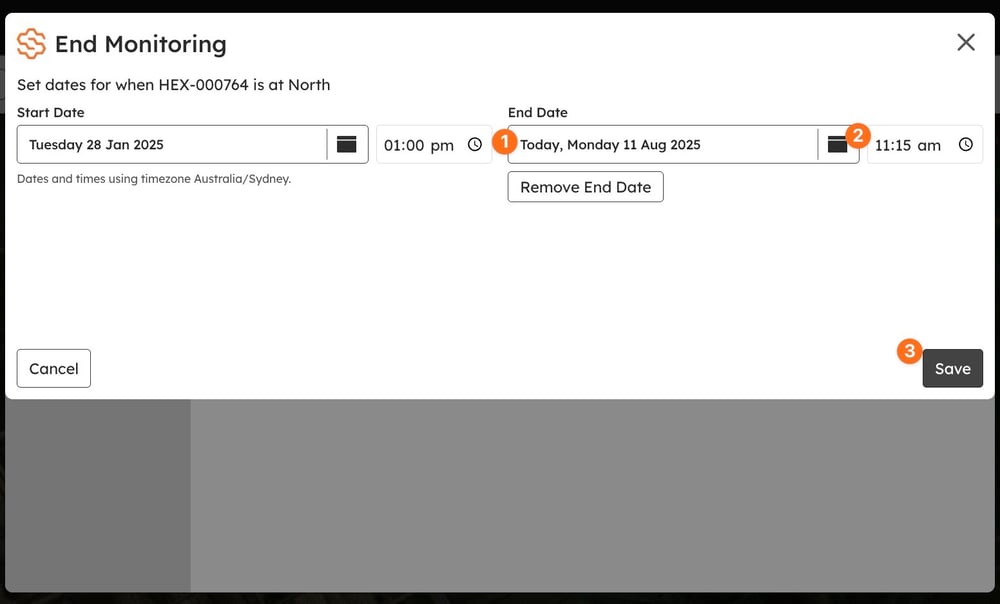
Afterwards, the Monitoring Point stays on the map with everything recorded there, and the device moves to **Previous devices** on the Devices tab, free to be assigned elsewhere. Ending is not deleting: **Delete**, the last item in the menu, removes the record and its history at this location. Use **Delete** only for an assignment that was created by mistake.
### Fix the dates afterwards
Change the start or end of a device's time at a Monitoring Point if it was entered at the wrong time, or to tidy the record. Which dialog you use depends on whether the device is still there.
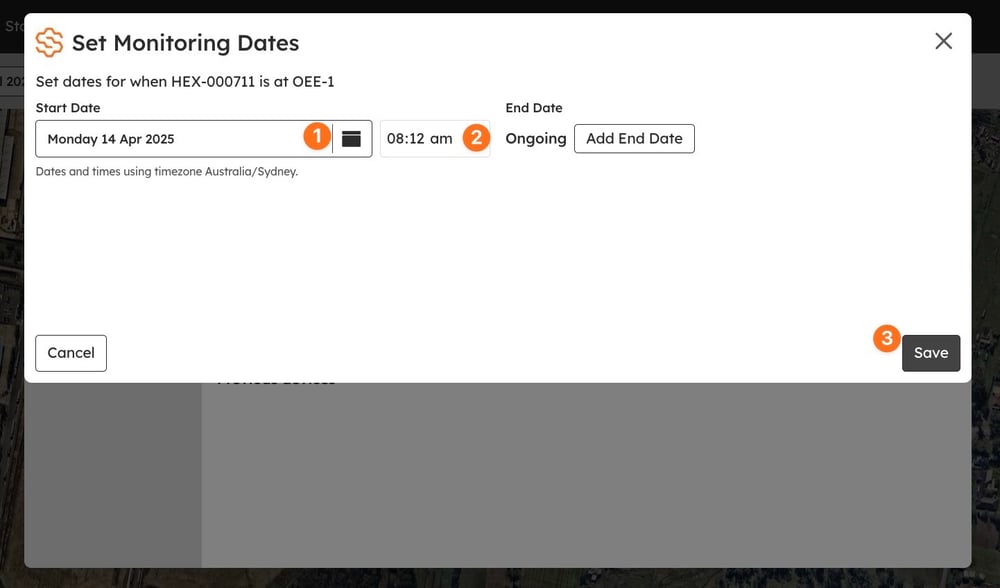
#### A device that is there now
1. Select the device open **Device Actions** and choose **Edit Monitoring Dates**.
2. Change the **Start Date** and time. **Add End Date** closes the record too, the same as End Monitoring.
3. Click **Save**.
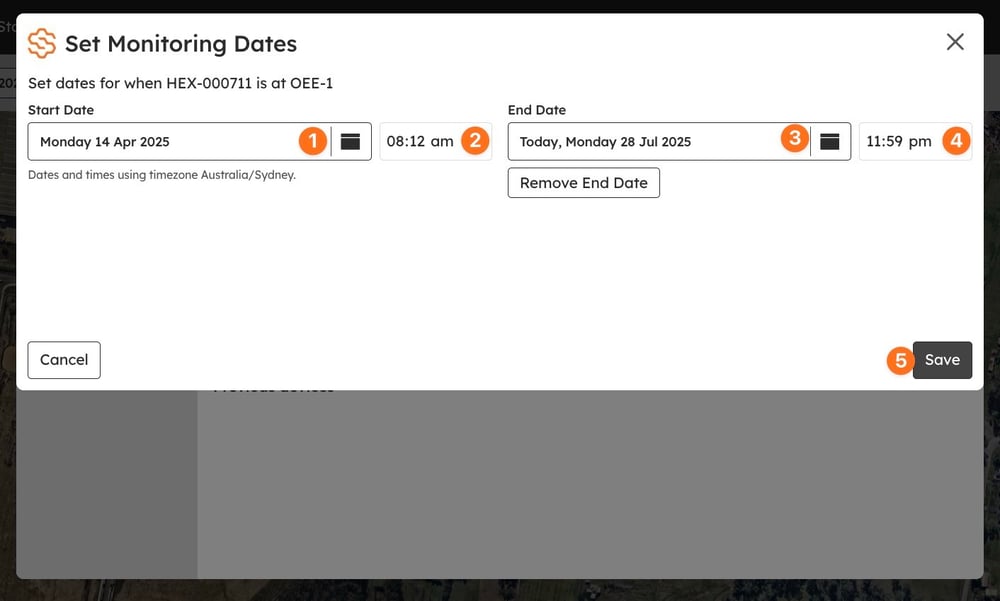
#### A device that has already left
1. On the Devices tab, open **Previous devices** and click **Edit** on the device's row.
2. Change the start date and time, the end date and time, or both.
3. Click **Save**.
### Write it down
You can add a [Daily note](https://support.sitehive.com/en-au/daily-notes?hsLang=en-au) tagged to the Monitoring Point saying what changed and when: the device moved, or monitoring ended. These notes can be included in PDF reports.
---
### What's next
[Swap a device](https://support.sitehive.com/en-au/swap-a-device?hsLang=en-au) (a replacement takes over the Monitoring Point)
[Check and adjust your device's orientation](https://support.sitehive.com/en-au/check-and-adjust-your-devices-orientation?hsLang=en-au) (after a move, set it again)
[Click Manage to adjust settings and devices](https://support.sitehive.com/en-au/click-manage-to-adjust-settings-and-devices?hsLang=en-au) (the Manage window, tab by tab)
Data looks wrong after a change? [Sense check your data](https://support.sitehive.com/en-au/sense-check-your-data?hsLang=en-au)
[](https://sitehive.com/)
[www.sitehive.com](https://www.sitehive.com)
[mailto:support@sitehive.co](mailto:support@sitehive.co)
Copyright © 2026, SiteHive