---
title: Select events in bulk with Smart Select
description: Smart Select picks out every event that meets criteria you choose, so you can explain them in bulk instead of one by one.
image: https://support.sitehive.com/hs-fs/hubfs/Knowledge%20Base%20Import/homepageimages/enviro-setup.jpg?width=1200&name=enviro-setup.jpg
---
[Skip to content](https://support.sitehive.com/en-au/select-events-in-bulk-with-smart-select#main-content)
[](https://support.sitehive.com/?hsLang=en-au)
Open main navigation
Close main navigation
- [Contact us](https://support.sitehive.com/en-au/contact-us)
[Contact us](https://support.sitehive.com/en-au/contact-us?hsLang=en-au)
How can we help?
- There are no suggestions because the search field is empty.
1. [SiteHive Support](https://support.sitehive.com/en-au?hsLang=en-au)
2. [SiteHive Enviro Pro: advanced features](https://support.sitehive.com/en-au/sitehive-enviro-pro-advanced-features?hsLang=en-au)
# Select events in bulk with Smart Select
**Smart Select** picks out every event that meets criteria you choose, so you can explain them in bulk instead of one by one.
> 💡 Smart Select is at its best on a long list: a month of vibration events reviewed in minutes, with your attention saved for the few that matter.

### How it works
Smart Select works one aspect at a time. You tell it what does not need individual attention for that aspect, it selects every unexplained event that qualifies, and you action the selection in bulk. The events that remain are the ones that need a person.
### How to use Smart Select
1. **Go to the Events tab** in your Dashboard.
2. **Select the aspect.** The Smart Select button appears above the events table for the aspects Smart Select supports.
3. **Click Smart Select.**
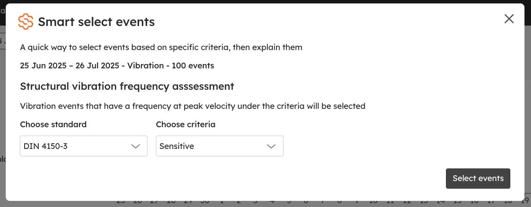
4. **Choose your criteria** in the pop-up. The optionsdepend on the aspect (see below).
5. **Click Select events**, then explain the selected events together. See [Events: investigate an exceedance](https://support.sitehive.com/en-au/events-investigate-an-exceedance?hsLang=en-au).
### Criteria for vibration
For vibration, you can select events in two ways. Use whichever fits how your project assesses vibration, or one after the other.
> ℹ️ Smart Select currently works on vibration events. As it comes to other aspects, their criteria will be listed here.
#### By frequency assessment
Choose a **standard** and a **criterion** within it, for example DIN 4150-3 and Sensitive. Smart Select picks every event whose peak velocity, at its frequency, sits **below** that criterion's curve.
Use this to clear events that exceeded your trigger level but are still below the structural damage criterion that applies to your site.

#### By waveform classification
Every vibration waveform is labelled by the [Waveform Classifier](https://support.sitehive.com/en-au/vibration-classifier-what-caused-the-vibration?hsLang=en-au) as **Construction** (🟠) or **Non-construction** (🔵). Choose a label, and Smart Select picks every unexplained event with that label.
Use this to clear events that weren't caused by your works, such as someone knocking the device, maintenance or external sources, in one go.
> 💡 **Tip:** The labels are a fast first pass, not a final call. Before explaining a batch, open a few events and check the waveform matches the label, especially near a sensitive receiver.
---
### What's next
[Events: investigate an exceedance](https://support.sitehive.com/en-au/events-investigate-an-exceedance?hsLang=en-au) (explain the events you selected)
[SiteHive Vibration: what it measures and how](https://support.sitehive.com/en-au/sitehive-vibration-what-it-measures-and-how?hsLang=en-au) (the standards behind the vibration criteria)
[What is included in SiteHive Enviro Pro](https://support.sitehive.com/en-au/what-is-included-in-sitehive-enviro-pro?hsLang=en-au) (the full feature list)
[](https://sitehive.com/)
[www.sitehive.com](https://www.sitehive.com)
[mailto:support@sitehive.co](mailto:support@sitehive.co)
Copyright © 2026, SiteHive