---
title: Set up media triggers
description: Media triggers set the level a Hexanode must reach before it captures media, so every photo, audio clip and vibration waveform ties to the peak moment in…
image: https://support.sitehive.com/hs-fs/hubfs/Knowledge%20Base%20Import/homepageimages/enviro-setup.jpg?width=1200&name=enviro-setup.jpg
---
[Skip to content](https://support.sitehive.com/en-au/set-up-media-triggers#main-content)
[](https://support.sitehive.com/?hsLang=en-au)
Open main navigation
Close main navigation
- [Contact us](https://support.sitehive.com/en-au/contact-us)
[Contact us](https://support.sitehive.com/en-au/contact-us?hsLang=en-au)
How can we help?
- There are no suggestions because the search field is empty.
1. [SiteHive Support](https://support.sitehive.com/en-au?hsLang=en-au)
2. [SiteHive Enviro: dashboard, reports & analysis](https://support.sitehive.com/en-au/sitehive-enviro-dashboard-reports-analysis?hsLang=en-au)
# Set up media triggers
Media triggers set the level a Hexanode must reach before it captures media, so every photo, audio clip and vibration waveform ties to the peak moment in each media period.
### Set up media triggers
Your SiteHive Hexanode devices capture media at the peak moment of every **media period**, so the photos, audio and waveforms you see always show what was happening at the height of activity.
For each [Monitoring Point](https://support.sitehive.com/en-au/what-is-a-monitoring-point?hsLang=en-au), you can control two things:
- **Media trigger**: set the minimum level a device must reach before it captures media, so you choose how much media your site collects. Only available for Noise.
- **Image and audio capture**: turn photos and/or audio recording on or off, for example where privacy or site rules mean you can't record audio.
Both are set in the same place, on the **Media Triggers** tab of the Manage window.
> ℹ️ The default media period is **15 minutes** for Noise, Dust, Weather, Noise+Dust and Weather+Dust Hexanodes, and **1 minute** for Hexanode Vibration.
### How media capture works
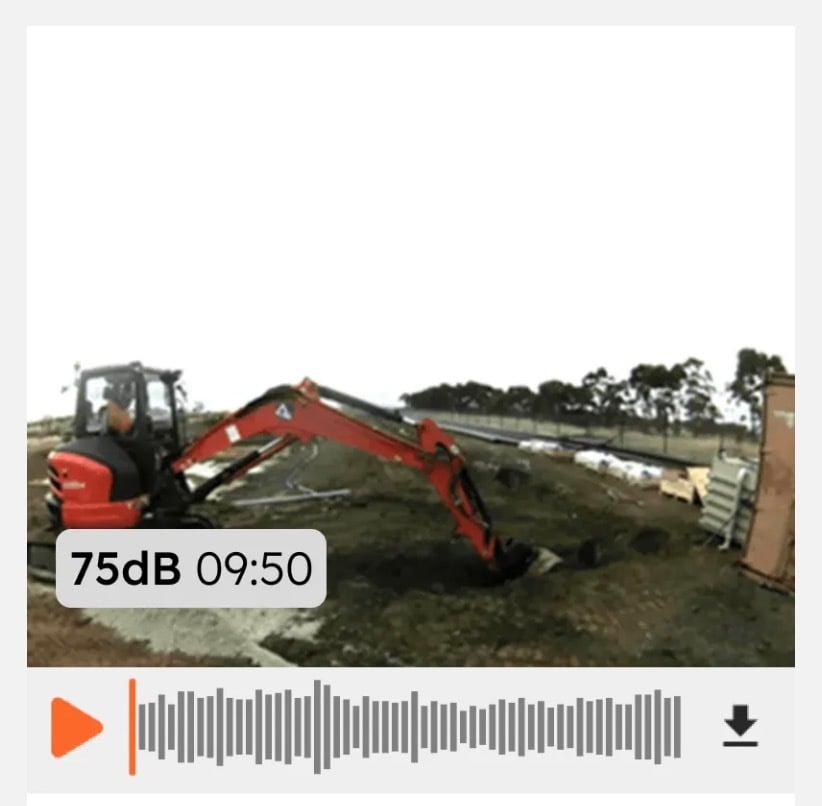
In each media period, your device tracks the highest level it measures and captures media tied to that moment:
- **Noise**: one directional image and a 6-second audio clip, running from 3 seconds before the peak to 3 seconds after
- **Dust**: two images, one in each direction
- **Weather**: one directional image and a 6-second audio clip
- **Vibration**: a 3-second velocity waveform at 1-millisecond resolution, running from 1 second before the trigger to 2 seconds after
For more on what each device type captures, see [Media timeline: the photos and audio your devices capture](https://support.sitehive.com/en-au/media-timeline-the-photos-and-audio-your-devices-capture?hsLang=en-au).
### Media capture on combination devices
When a Hexanode monitors more than one aspect, a single aspect decides the peak, in this order of priority: **noise, then dust, then weather**.
- A **Noise+Dust** Hexanode captures media at the noise peak.
- A **Weather+Dust** Hexanode captures media at the dust peak.
### Noise media trigger
The noise media trigger is a minimum **LAmax** level, **55 dB** by default. If the loudest moment in a media period doesn't reach it, no media is captured for that period.
- **Lower it** (for example to 45 dB) to capture media on quieter sites, or during quieter hours.
- **Raise it** (for example to 70 dB) to capture media only when works are loud.
### Vibration media trigger
The vibration media trigger is an **instantaneous peak velocity level**, set in mm/s. When vibration exceeds the trigger, the Hexanode Vibration captures a waveform at the highest peak in that 1-minute media period. The waveform is 3 seconds of velocity data at 1-millisecond resolution, from 1 second before the trigger to 2 seconds after.
Waveforms show the shape of a vibration event, which helps you tell a sharp impact (such as piling or a dropped load) from continuous vibration (such as a roller or plant idling nearby).
### How to set up media
**Before you start:** make sure the Monitoring Point is already set up on your project ([Add a device with Easy Setup](https://support.sitehive.com/en-au/add-a-device-with-easy-setup?hsLang=en-au)).
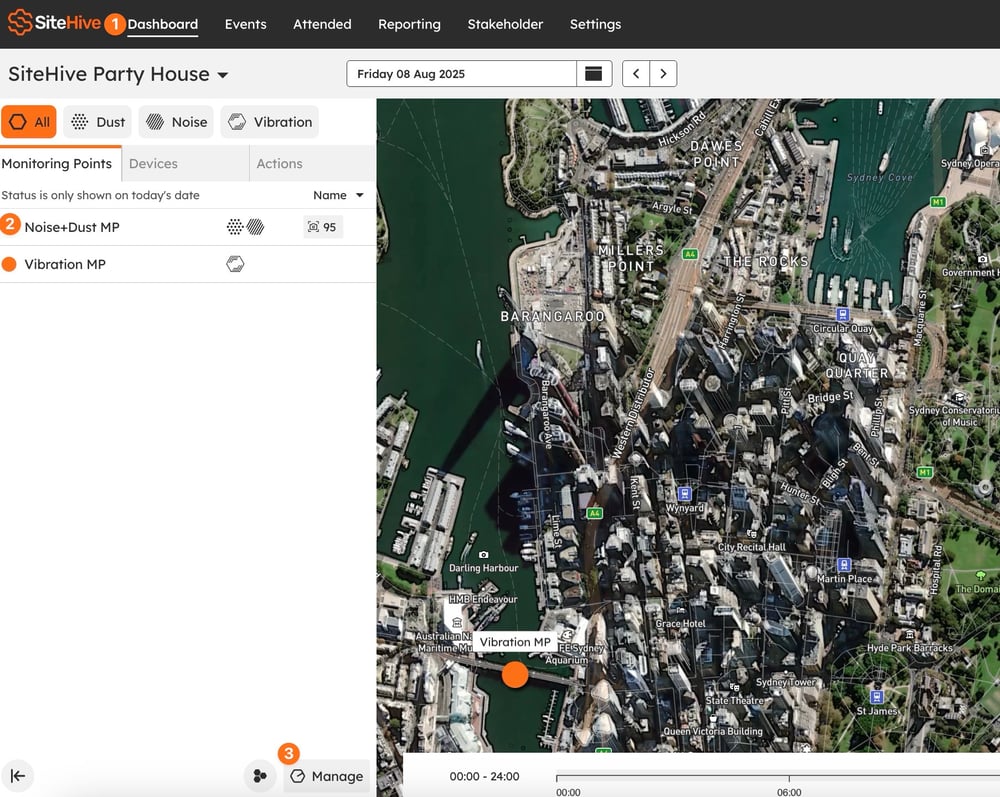 
1. On the **Dashboard**, open the **side panel**.
2. Click the **Monitoring Point** you want to adjust.
3. Click **Manage**.
4. Select the **Media Triggers** tab.
5. Enter your **Noise Media Capture Trigger** in dB (LAmax). For a Hexanode Vibration, enter the **Vibration Media Capture Trigger** in mm/s.
6. Optional: use the **Enable image** and **Enable audio** switches to turn either kind of capture off at this Monitoring Point.
7. Click **Save**.
The same tab has **Enable image** and **Enable audio** switches if you want to turn off either kind of capture at this Monitoring Point.
> 💡 Triggers are set per Monitoring Point, so repeat these steps for each one on your project.
#### FAQs
**Why is there no media for some periods?**
The peak in that period didn't reach your media trigger. This is most common overnight or on quiet days. Lower the trigger if you want media for those periods.
**Why is the level on a photo different from the graph?**
The level shown on the media is the peak moment in the media period. Your graphs show the average across the period, so the media label will often be higher.
**Do media triggers cost more power or data?**
Media capture is designed to stay within your device's normal power and connectivity limits. Media is uploaded within 5 minutes of capture.
---
#### What's next
[Media timeline: the photos and audio your devices capture](https://support.sitehive.com/en-au/media-timeline-the-photos-and-audio-your-devices-capture?hsLang=en-au) (what each device type captures, and where to find it)
[Click Manage to adjust settings and devices](https://support.sitehive.com/en-au/click-manage-to-adjust-settings-and-devices?hsLang=en-au) (everything else in the Manage window)
[Set up rules and notifications](https://support.sitehive.com/en-au/set-up-rules-and-notifications?hsLang=en-au) (get told when a level is exceeded)
[](https://sitehive.com/)
[www.sitehive.com](https://www.sitehive.com)
[mailto:support@sitehive.co](mailto:support@sitehive.co)
Copyright © 2026, SiteHive