
Smart Select speeds up vibration event review by automatically selecting events that fall below your chosen standard and criteria, so you can deal with them in bulk instead of picking through events one by one. It's part of the event review workflow in Events.
How to use Smart Select
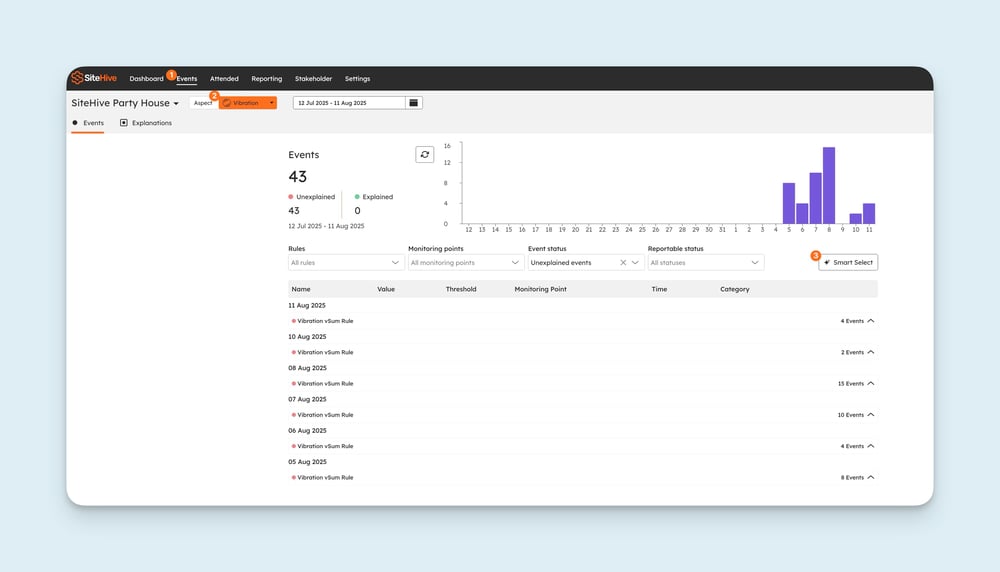
Go to the Events tab in your dashboard.
Select the Vibration aspect, and the Smart Select button appears.
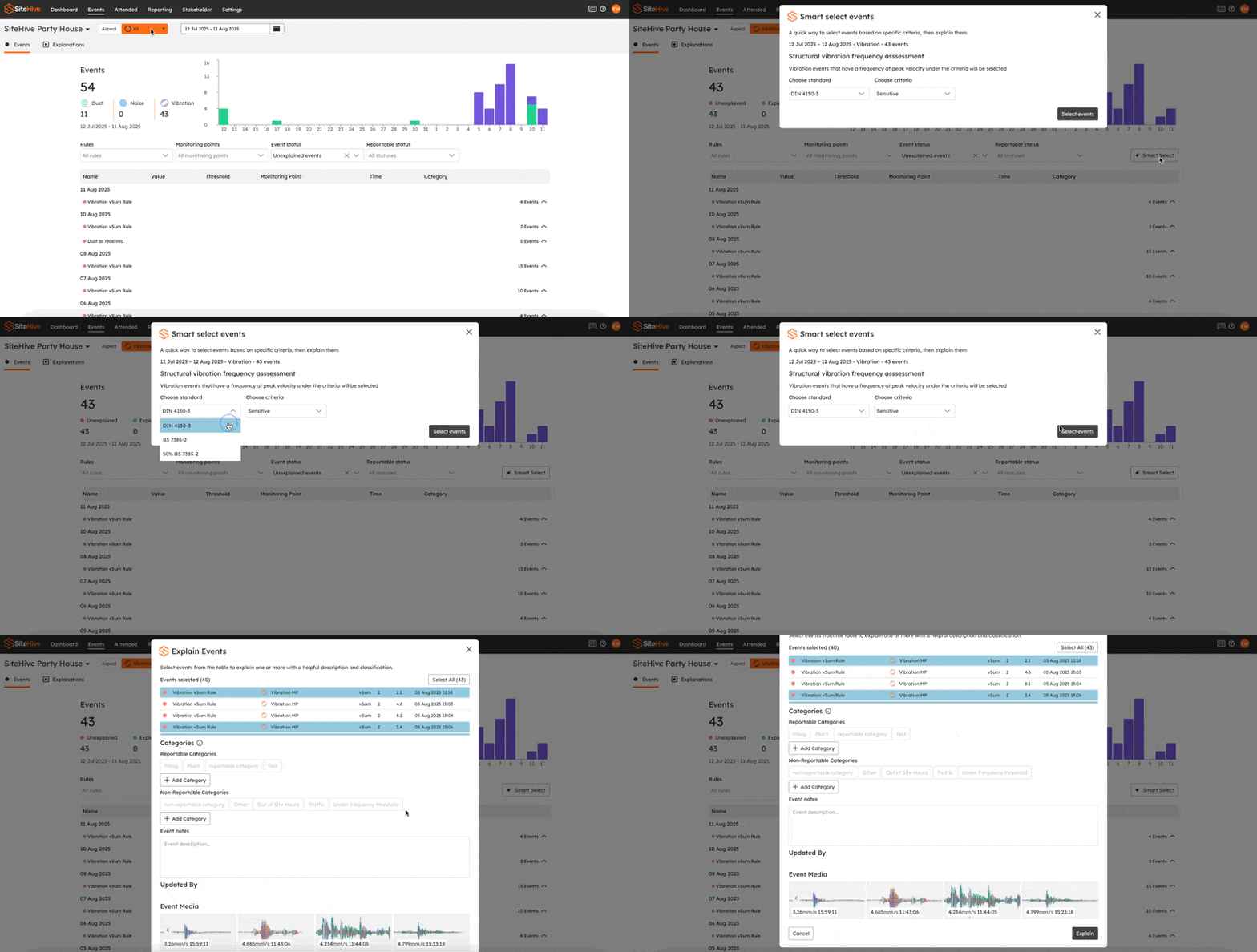
Click Smart Select.
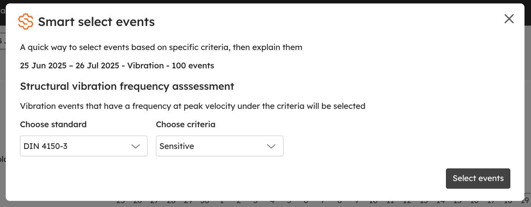
Choose your standard and criteria in the pop-up (for example DIN 4150-3, Sensitive). Vibration events with a frequency at peak velocity under the criteria will be selected.
Click Select Events. The automatically selected events fall under your chosen criteria and generally aren't the ones you need to focus on, so you can action them together and focus your individual review on the events that remain.
💡 Smart Select is perfect for saving time when reviewing large sets of vibration data. No more manually picking through events one by one!