---
title: What is a Monitoring Point?
description: A Monitoring Point is a location on your site where monitoring is happening.
image: https://support.sitehive.com/hs-fs/hubfs/Knowledge%20Base%20Import/homepageimages/enviro-setup.jpg?width=1200&name=enviro-setup.jpg
---
[Skip to content](https://support.sitehive.com/en-au/what-is-a-monitoring-point#main-content)
[](https://support.sitehive.com/?hsLang=en-au)
Open main navigation
Close main navigation
- [Contact us](https://support.sitehive.com/en-au/contact-us)
[Contact us](https://support.sitehive.com/en-au/contact-us?hsLang=en-au)
How can we help?
- There are no suggestions because the search field is empty.
1. [SiteHive Support](https://support.sitehive.com/en-au?hsLang=en-au)
2. [SiteHive Enviro: set up your site](https://support.sitehive.com/en-au/sitehive-enviro-set-up-your-site?hsLang=en-au)
# What is a Monitoring Point?
A Monitoring Point is a location on your site where monitoring is happening. You assign a device to a Monitoring Point for a period of time, with a start date and an end date.
Each Monitoring Point is located on a the map, and its name appears in graphs and reports. It also holds that location's settings, and keeps them even when a device is changes: [rules](https://support.sitehive.com/en-au/set-up-rules-and-notifications?hsLang=en-au), notifications and media triggers are set for each Monitoring Point, so two locations on the same site can be treated differently.
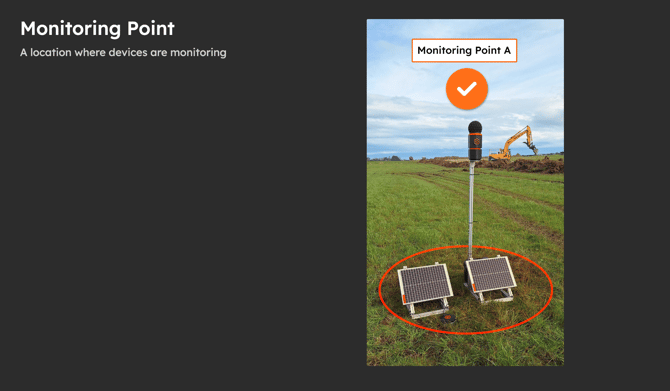
### Monitoring Points are created using Easy Setup
Monitoring Points are created using [Easy Setup](https://support.sitehive.com/en-au/add-a-device-with-easy-setup?hsLang=en-au), when you assign a device to a location. Once setup your Monitoring Point is visible on the Dashboard map showing the associated aspect data.
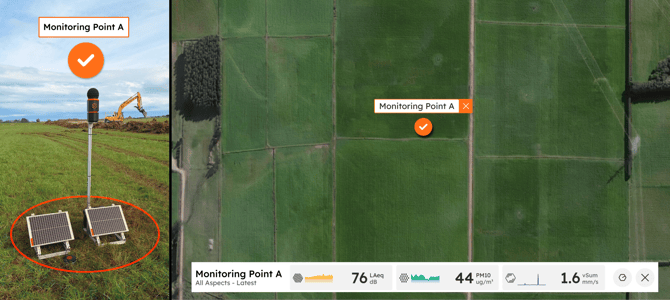
### What is shown and set at a Monitoring Point
- **Data and graphs.** The Dashboard map shows the latest values at each Monitoring Point, and **Reporting \> Graphs** lets you graph by Monitoring Point to compare locations.
- **Rules and notifications.** Rules are assigned per Monitoring Point, so the one at your boundary and the one at a receiver can have different limits.
- **Media triggers.** Whether media is enabled to capture.
- **Daily notes.** Tag a note to the Monitoring Point and it is reported against that location.
- **Reports.** PDF and CSV reports are organised by Monitoring Point.
- **Position and orientation.** The Monitoring Point has a position on the map; and Noise device have orientation, which Direction of Arrival depends on.
### Naming a Monitoring Point
- Use the name people on site already use: **North boundary fence**, **Receiver R3 Smith St**, **Site office**.
- Name the place, not the device. Serial numbers change when a device is swapped; the place does not.
- Keep it short. Names appear in graph legends, notification emails and report tables.
- If the same spot carries two aspects, one Monitoring Point is enough; the aspect is a property of the device, not the Monitoring Point.
### Where you see Monitoring Points
- The Dashboard side panel lists them, with status symbols, and the map places them.
- The **Manage** window opens on a Monitoring Point view (its devices, rules, media triggers and setup) or a Device view.
- **Settings \> Devices & Monitoring Points** lists every Monitoring Point and device on the site.
- **Reporting \> Graphs** has a Graph by Monitoring Point option.
[](https://sitehive.com/)
[www.sitehive.com](https://www.sitehive.com)
[mailto:support@sitehive.co](mailto:support@sitehive.co)
Copyright © 2026, SiteHive