
Let's get your SiteHive Enviro Software set up so you can see data from your devices ASAP. We'll assume your devices are physically located out on site, and are powered and connected.
Here we introduce the Easy Setup process in the SiteHive Enviro Software, which enables you to choose a device and set it up for use in the software.
Use Easy Setup to see your data
When setting up a new device or Monitoring Point location, use Easy Setup: a quick process to get a device set up and running. Access it via the Actions tab in the side panel.
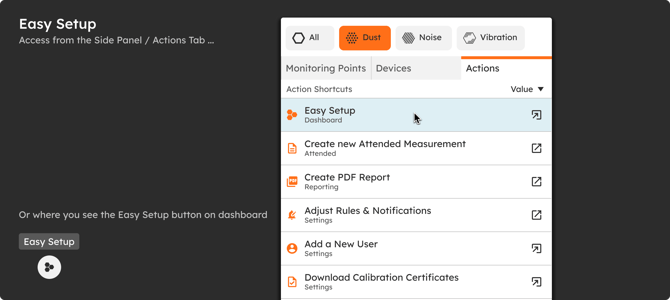
Once you start Easy Setup, you are guided through a process to select a device, select or create a Monitoring Point, and, if you wish, add rules to that location. It's an easy way to get a device up and running.
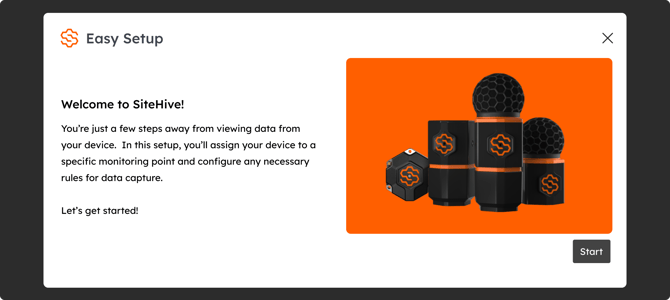
The Easy Setup process takes you through the following steps:
-
Select a device that you want to set up.
-
Choose the Monitoring Point location (from existing, or create a new one): this is where the device is located.
-
Confirm the dates it is located there and its orientation, which is important for Direction of arrival data.
-
Your device is ready, and data will be visible on the Dashboard.
-
Optional: create or set a rule for this Monitoring Point.
-
Complete the Easy Setup process.
After Easy Setup: the Manage window
Once devices are assigned to Monitoring Points, everything that follows (rules, media triggers, power and signal, calibration details and Device actions) lives in the Manage window.