SiteHive Enviro works seamlessly on mobile, making it easy to access information on your site anytime, from anywhere. We recommend saving it to your home screen as a web app for quick and convenient access.
The quickest path depends on your phone: on iPhone, use Safari (first section below); on Android, use Chrome; or on any phone, use the Install web app button inside SiteHive Enviro.
Initial log-in on Mobile
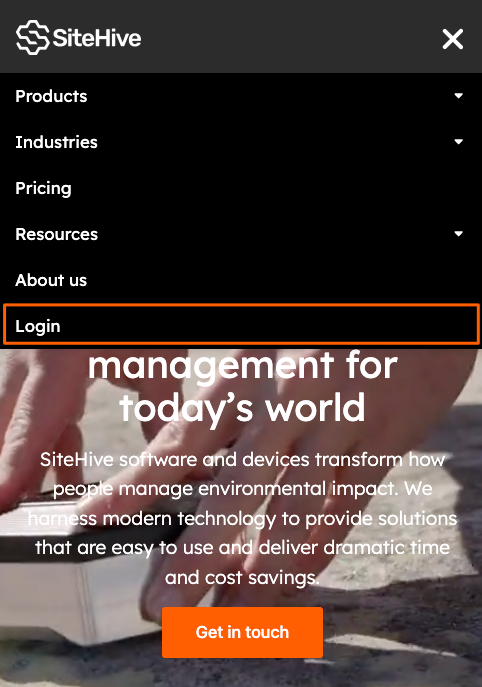
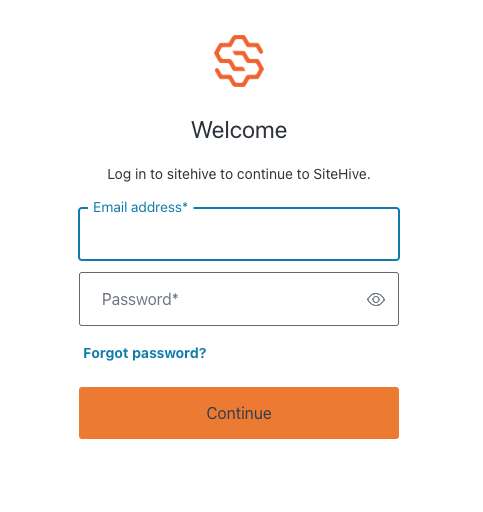
If you can't find your site link or dashboard link, simply visit sitehive.com and tap the Login menu item, then enter your details on the login screen.
iPhone: install using Safari
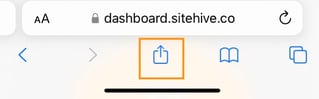
Open Safari and log in to SiteHive. Tap the Share icon (the middle icon, a square with an arrow pointing out) on the toolbar, as seen below:
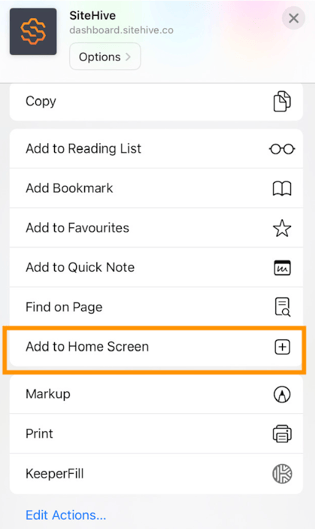
Scroll down and press Add to Home Screen (the plus [ + ] button).
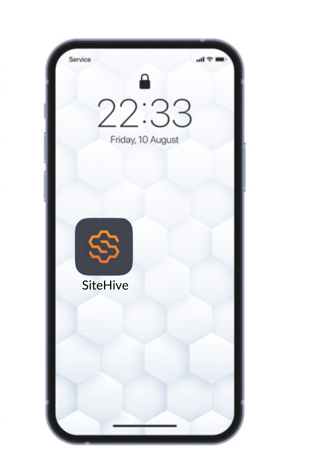
The SiteHive shortcut is added to your phone, making it easier to get to SiteHive Enviro.
Android: install using Chrome
Open Chrome and log in to SiteHive Enviro, then:
-
Tap the menu (three dots) in the top right of Chrome.
-
Tap Add to Home screen (on some phones this appears as Install app) and confirm.
The SiteHive icon appears on your home screen.
Or use the Install web app button
On any phone, you can install straight from inside SiteHive Enviro:
-
Log in to SiteHive Enviro with a browser on your phone.
-
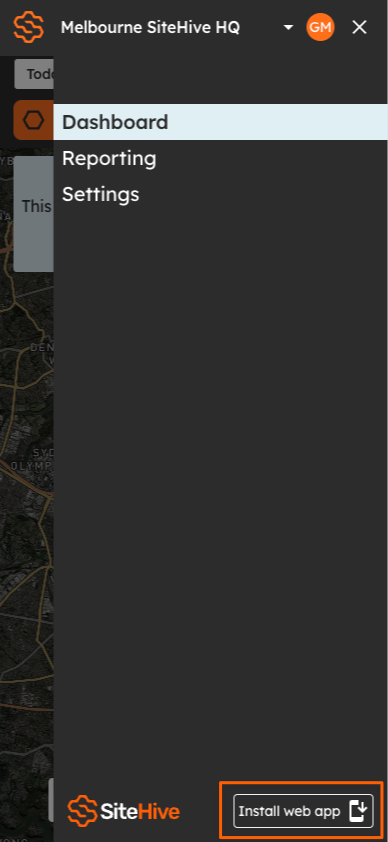
Open the main menu (top right).
-
Tap the Install web app button at the bottom right of the screen.
-
Follow the on-screen instructions, which differ depending on your phone and browser.
Once the icon is on your home screen, simply tap it to start the web app. You'll be asked to log in again the first time: this is so your credentials are securely remembered on your phone. After that you stay logged in, and it opens on the Dashboard for your selected site each time.
iPhone without Safari: Chrome and the Shortcuts app
Use this method to install the SiteHive Enviro web app on iPhone if Safari is not available. Google Chrome must already be installed, with your SiteHive login details saved in the browser.
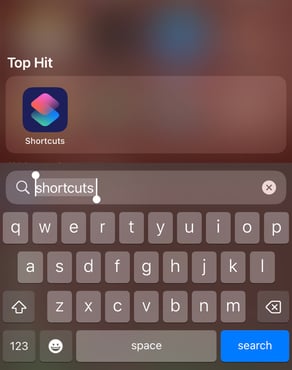
On your device, search for Shortcuts and open the application.
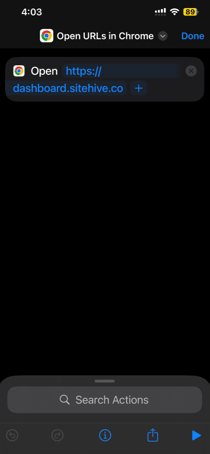
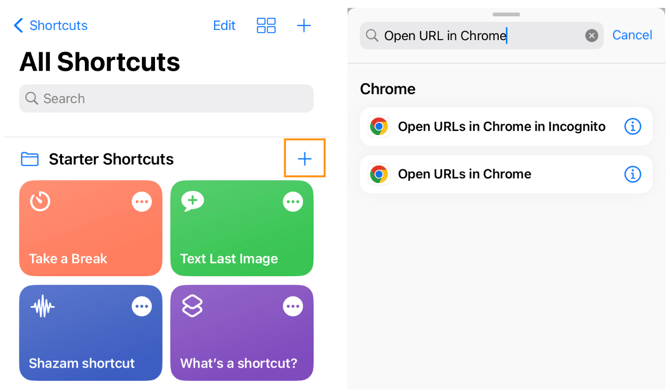
Once the app is open, tap the plus ( [+] ) button, use the search bar to type 'Open URLs in Chrome', and select the Open URLs in Chrome action.
In the Shortcuts app, paste https://dashboard.sitehive.co into the URL field of the Open URLs in Chrome action.
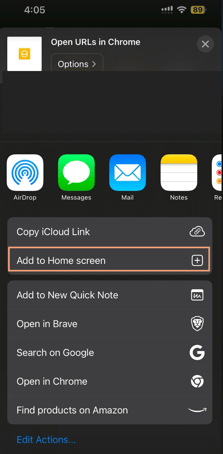
Then tap the Share icon (the square with an arrow pointing out) and tap Add to Home Screen.