
Site settings hold the basics of a site in SiteHive Enviro: where it is, contact details, and site hours. Check them when a site is first set up and whenever the site conditions change, because site hours in particular change how your data reads against your rules.
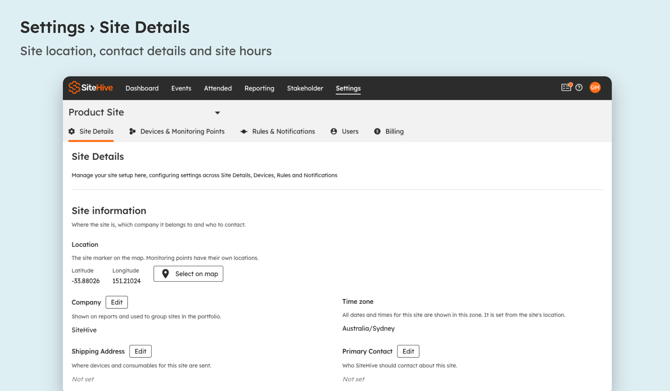
Open your site settings
Click Settings in the top menu. It opens on the Site Details tab, which this page covers. The other tabs are Devices & Monitoring Points, Rules & Notifications and Users. On a phone, the tabs show as icons.
Site location
Site Location shows the latitude and longitude of the centre of your site. It is where the Dashboard map opens.
-
Click Select on map.
-
Drag the pin to the centre of your site, or type the Latitude and Longitude under Current Site location.
-
Click Save.
There is no address search, so move and zoom the map to your site first, then place the pin.
Contact details
Three fields tell SiteHive who the site belongs to and where to send things:
-
Company: the company the site belongs to.
-
Shipping Address: where SiteHive sends devices to.
-
Primary Contact: the person SiteHive contacts about the site and its devices. Include a name, phone number and email address.
To change one, click Edit beside it, make the change and click Save (or Cancel to leave it as it was).
ℹ️ The primary contact does not receive alerts. The people who get rule, offline device and low battery notifications are set up as recipients under Settings > Rules & Notifications: Set up rules and notifications.
Site hours
Site hours are the hours your site works. SiteHive Enviro uses them across graphs, rules and reports, so set them to match your approved working hours, as set out in your management plan or approval conditions.
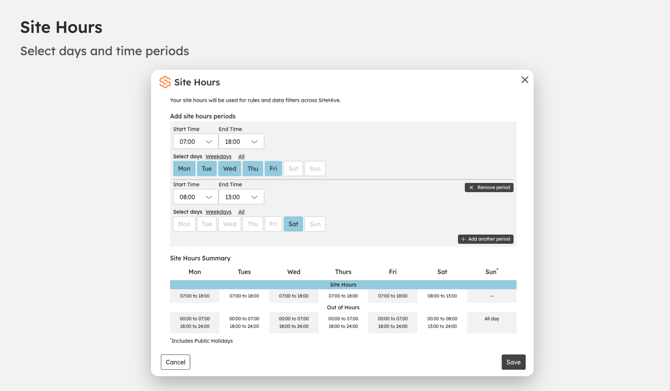
Change your site hours
-
Next to Site Hours, click Edit.
-
Set a Start Time and End Time. Times go in 30 minute steps.
-
Under Select days, choose the days this period applies to, or click Weekdays or All.
-
For a different pattern on some days, such as a shorter Saturday, click + Add another period. You can have up to six periods.
-
Check the Site Hours Summary, which shows your site hours and out of hours across the week, then click Save.
-
Not set yet? SiteHive Enviro uses Monday to Friday 7:00 to 18:00 and Saturday 8:00 to 13:00.
-
Public holidays are treated as a Sunday.
-
All times are in the site's time zone (see below).
What site hours change
-
Graphs: out of hours periods are shaded and labelled Out of Hours. To hide the shading on a graph, turn off Show out of hours periods in its graph settings: Graph your data.
-
Rules: a rule set to Site Hours applies only during your site hours, and its limit line shows only during them.
-
Dashboard: the time filter has a Site Hours button that narrows the day to your working hours.
-
Reports: PDF reports and stakeholder views can highlight out of hours periods, and statistics can be split into site hours and out of hours: Create a PDF report.
Time zone
Time Zone shows the time zone the site runs on. Site hours and every time on the site use it. You can't change it here: if it is wrong, contact us.
Weather and map defaults
-
Weather: Default source for graphs & reporting sets which weather source graphs and reports use. It saves as soon as you choose.
-
Default base map: the map style the Dashboard opens with: Satellite and streets, Satellite (Dark), Outdoors or Light.
-
SiteHive Enviro Pro: upload KML files to draw site boundaries and works areas on the map (Add KML map layers), and connect your own survey and aerial imagery from MetroMap, Nearmap or Propeller Aero (Add survey and aerial maps).