
Once a week, take two minutes to confirm that every device is online, charged and connected. Most problems show up here first, well before a gap appears in a report.
First glance: the map, then the side panel
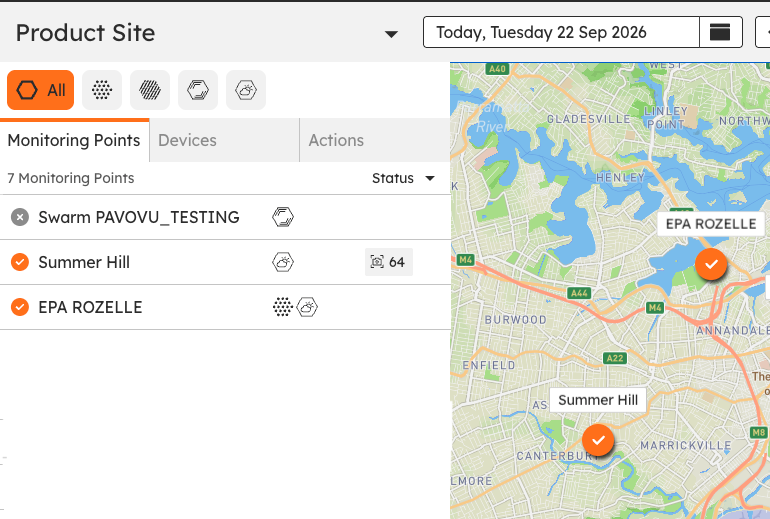
Open the Dashboard in SiteHive Enviro and choose All in the aspect filter. The map shows the status of every Monitoring Point, so anything not reporting stands out straight away.
The side panel lists your Monitoring Points and devices with a status symbol beside each:
Orange tick: every device at that Monitoring Point is online.
Grey cross: offline.
Half orange, half grey: some of the devices there are offline.
Check power and signal
For any device that looks off, read its battery and signal:
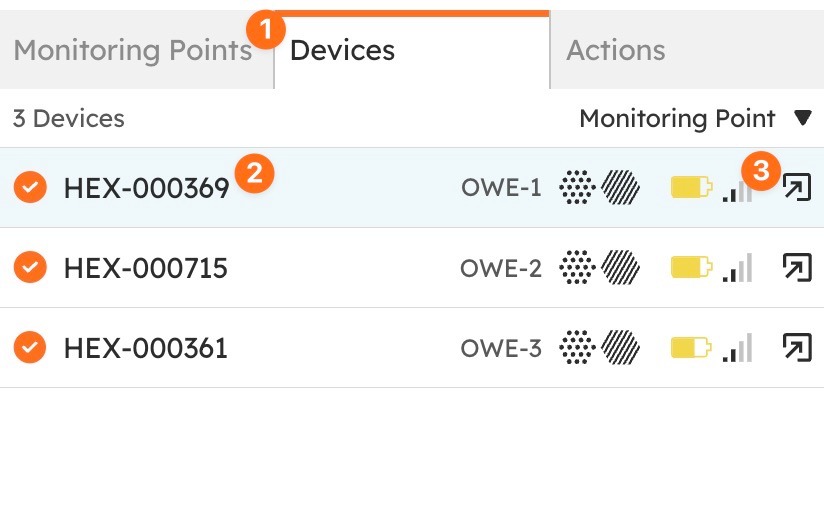
Switch to the Devices tab in the side panel.
Find the device. Its line shows a battery icon and a signal icon.
Click the battery icon or the signal icon. The Manage window opens on that device's Power or Signal tab.
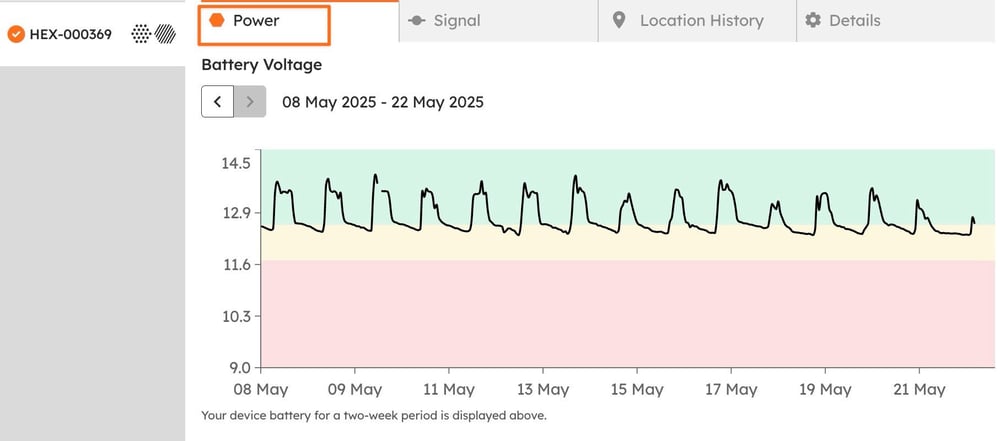
Power shows the battery voltage over the last two weeks against green, amber and red bands. On solar, a healthy trace climbs every day while the sun is up and settles overnight, and the overnight lows sit at the same level from one day to the next.
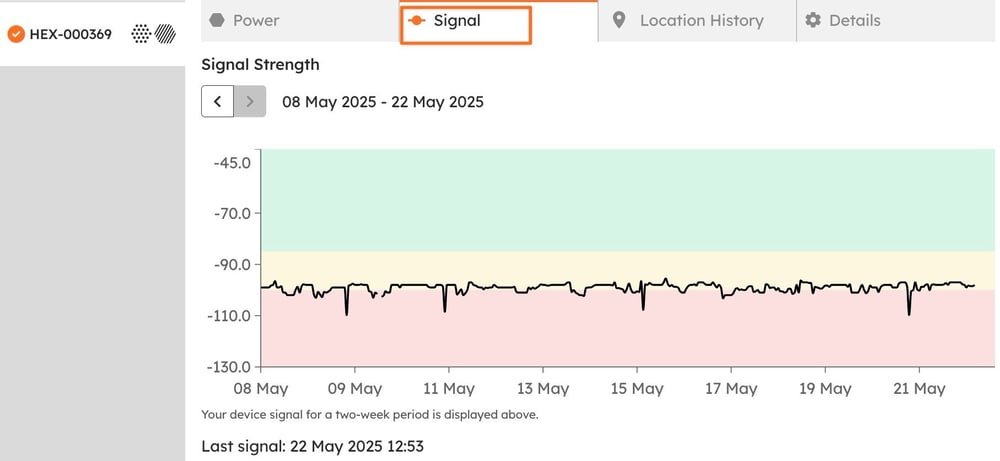
Signal shows signal strength over the same two weeks, with the time of the last signal underneath. A steady line is what you want, even a low one; data arriving every reporting period matters more than the number.
The rest of the Manage window is mapped in Click Manage to adjust settings and devices.
What healthy looks like
Battery above 25% and recovering each day on solar. A level that falls a little every day is the early warning of a shaded or dirty panel.
Signal steady, with data arriving every reporting period.
Status shown as online on the map, with the latest values at the Monitoring Point.
Let the alerts watch for you
Turn on the two device alerts in Settings > Rules & Notifications > Notifications:
Offline device alert: sent at 8 am if a device went offline and did not recover.
Low battery alert: sent at 8 am if a battery dropped below 25%.
How to set them up is in Set up rules and notifications.
When to act
Everything online, batteries healthy: move on to Sense check your data.
A device is offline:If a device goes offline.
Battery low or trending down: the power checks in If a device goes offline.
Online, but data missing: email support@sitehive.com.
What's next
Maintaining your site (the weekly routine this check belongs to)
Click Manage to adjust settings and devices (the Power and Signal tabs, and the rest of the window)