
The light in the centre of the SiteHive logo is your on-site check. Green means the device is powered, recording, and connected: you are done here and can move to the next device. This page is the one place that defines every light; the install and troubleshooting guides link here rather than repeating it.
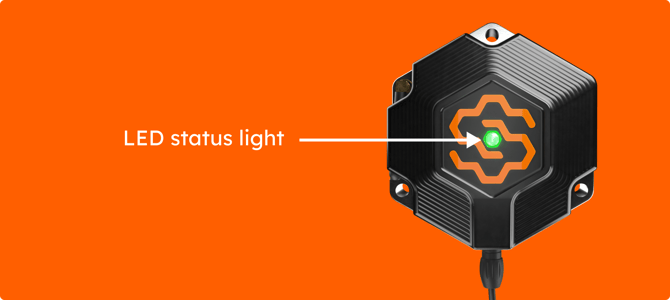
What each light means
Green, flashing (🟢). Powered, recording, and connected to the network. Nothing to do: note the direction the logo faces, take a context photo, and move to the next device.
Blue, flashing (🔵). Powered and recording locally, but no connection or a weak signal. Data is stored on the device and backfills once the signal returns. Flip out the antenna if it has one, move the device a little higher or away from metal and concrete, and give it a few minutes.
White (⚪). Rebooting. Normal during power-up; the light may cycle through colours before settling. Wait: settling on green can take up to 15 minutes after power-up.
Red (🔴). Error. The device is not operating properly. Contact SiteHive support: the team will troubleshoot remotely, and organise a replacement if required.
No light (⚫). No power. The device is not recording. Check the battery is charged and every cable is firmly connected, or that the mains adapter is plugged in.
If it never goes green
A device that will not go green is easiest to fix while you are still standing next to it.
-
Power cycle it. Unplug the device, wait 15 seconds, plug it back in. This clears most connection problems. Allow up to 15 minutes for the light to settle.
-
Still blue? Signal. Check your phone has coverage at the spot; if your phone does, the device should. Move it away from large amounts of concrete or metal, or higher up the pole.
-
No light at all? Power. Check the battery cable at both ends, the load cable into the device, and that the battery has charge. On a lead-acid setup, read Solar controller: check it is charging, and reset it.
-
Still stuck? Follow If a device goes offline, or email support@sitehive.com with the device serial and a photo of the setup.