
A device's time at a Monitoring Point is a record with a start and an end. This page is for changing that record once monitoring is running in SiteHive Enviro: moving the device to another Monitoring Point, ending its monitoring where it is, and fixing the dates afterwards. All of it is done from the Device Actions menu.
What are you solving?
Same device, in a new location: move it. See Move a device to another Monitoring Point below.
Swapping a device: See Swap a device.
Finished here: end monitoring. See End monitoring at a Monitoring Point below.
Where the actions are
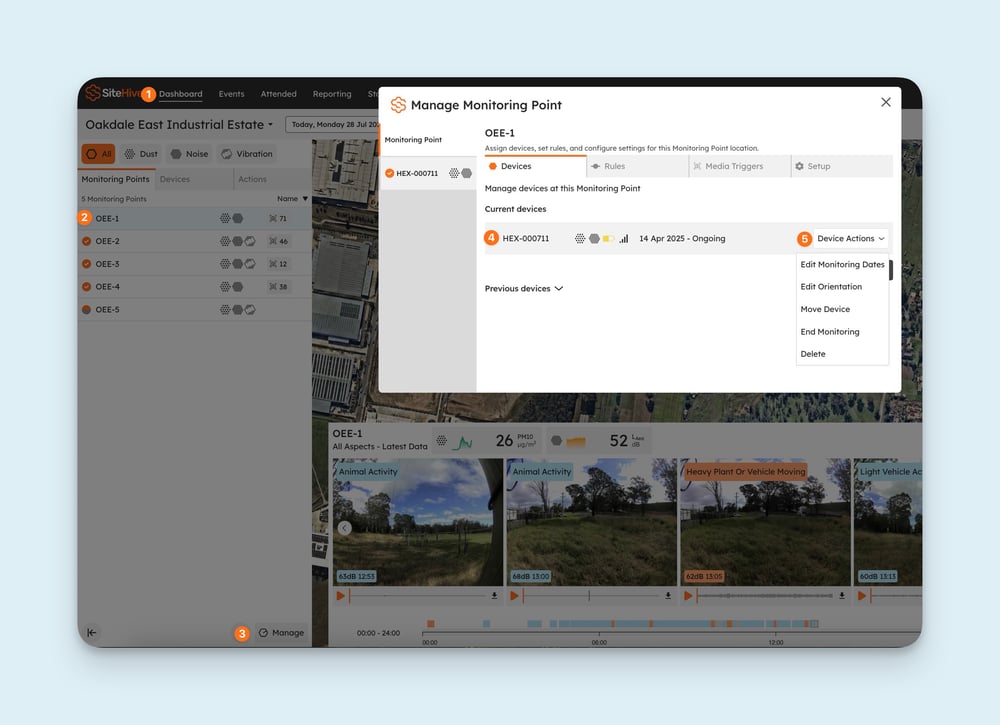
On the Dashboard, select the Monitoring Point and click Manage. On the Devices tab, find the device's line and open Device Actions. The rest of the window is mapped in Click Manage to adjust settings and devices.
Move a device to another Monitoring Point
Use this when the works have moved and the device goes with them. The device keeps its history at the old Monitoring Point and starts a new record at the new one.
Select the device, open Device Actions and choose Move Device.
Choose Monitoring Point: pick an existing one, or create a new one. If the device is going somewhere new, create a new Monitoring Point rather than renaming the old one (see What is a Monitoring Point?).
Set monitoring dates: the start date and time at the new Monitoring Point, usually when you reconnected the device there. Leave End current assignment ticked, and the record at the old Monitoring Point closes at that same moment.
Confirm orientation: for a noise or weather device, set which way it faces at the new spot. See Check and adjust your device's orientation.
Click Save.
Afterwards, the device appears under the new Monitoring Point on the Dashboard. Rules and media triggers belong to the Monitoring Point, not the device, so a new Monitoring Point starts with none: set them in the Manage window or in Settings > Rules & Notifications.
Editor's note (remove before publishing): the Move Device screenshot on the current page shows the Easy Setup wizard (Devices, Monitoring Points, Rules, Complete). In the current SiteHive Enviro build Move Device opens its own three-step dialog: Choose Monitoring Point, Set monitoring dates (with the End current assignment checkbox), Confirm orientation. Please confirm, and re-shoot step 2 with the checkbox visible; the old screenshot is left out of this draft.
End monitoring at a Monitoring Point
Use this when monitoring is finished at that location, or when a replacement device is about to take over, which is the first half of a swap.
Select the device, open Device Actions and choose End Monitoring.
Set the End Date and time to when you disconnected the device.
Click Save.
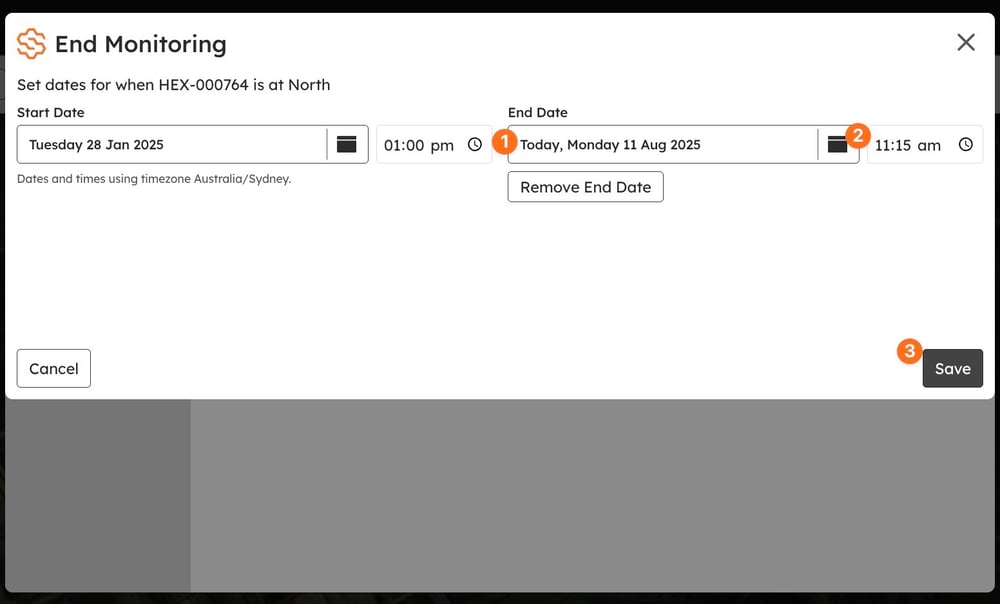
Afterwards, the Monitoring Point stays on the map with everything recorded there, and the device moves to Previous devices on the Devices tab, free to be assigned elsewhere. Ending is not deleting: Delete, the last item in the menu, removes the record and its history at this location. Use Delete only for an assignment that was created by mistake.
Fix the dates afterwards
Change the start or end of a device's time at a Monitoring Point if it was entered at the wrong time, or to tidy the record. Which dialog you use depends on whether the device is still there.
A device that is there now
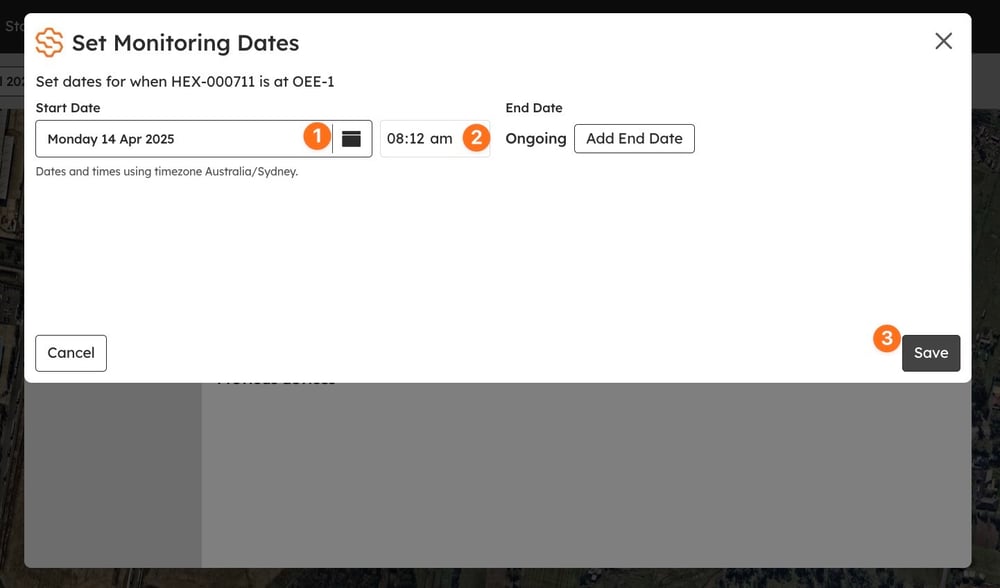
Select the device open Device Actions and choose Edit Monitoring Dates.
Change the Start Date and time. Add End Date closes the record too, the same as End Monitoring.
Click Save.
A device that has already left
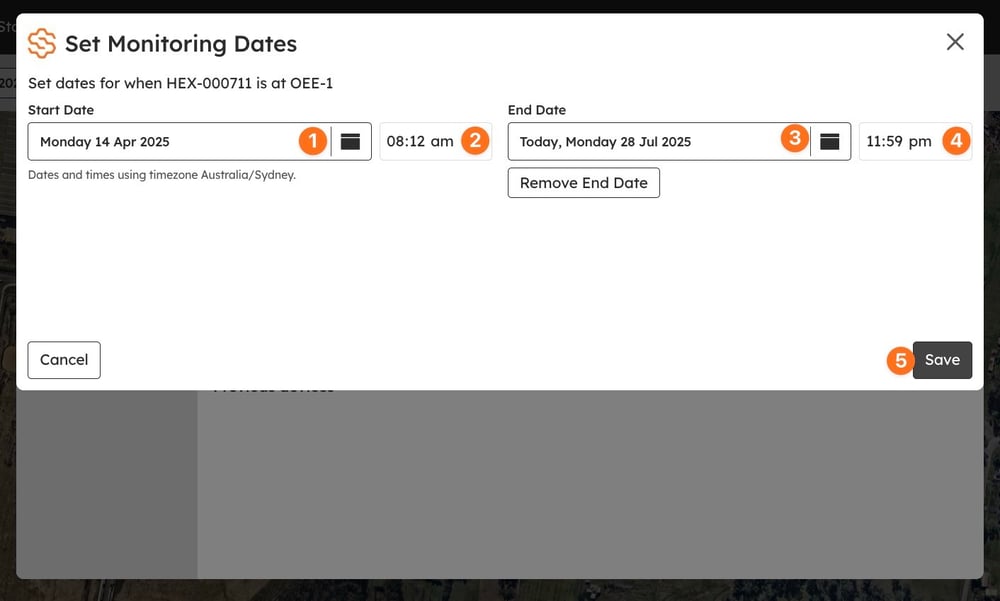
On the Devices tab, open Previous devices and click Edit on the device's row.
Change the start date and time, the end date and time, or both.
Click Save.
Write it down
You can add a Daily note tagged to the Monitoring Point saying what changed and when: the device moved, or monitoring ended. These notes can be included in PDF reports.
What's next
Swap a device (a replacement takes over the Monitoring Point)
Check and adjust your device's orientation (after a move, set it again)
Click Manage to adjust settings and devices (the Manage window, tab by tab)
Data looks wrong after a change? Sense check your data